Interface Guide
After launching Zipoly, the interface is split into a left sidebar and a main content area on the right: the sidebar switches between the eight feature modules, and the main area shows the workspace of the current module. The app opens on "Model Optimization" by default.
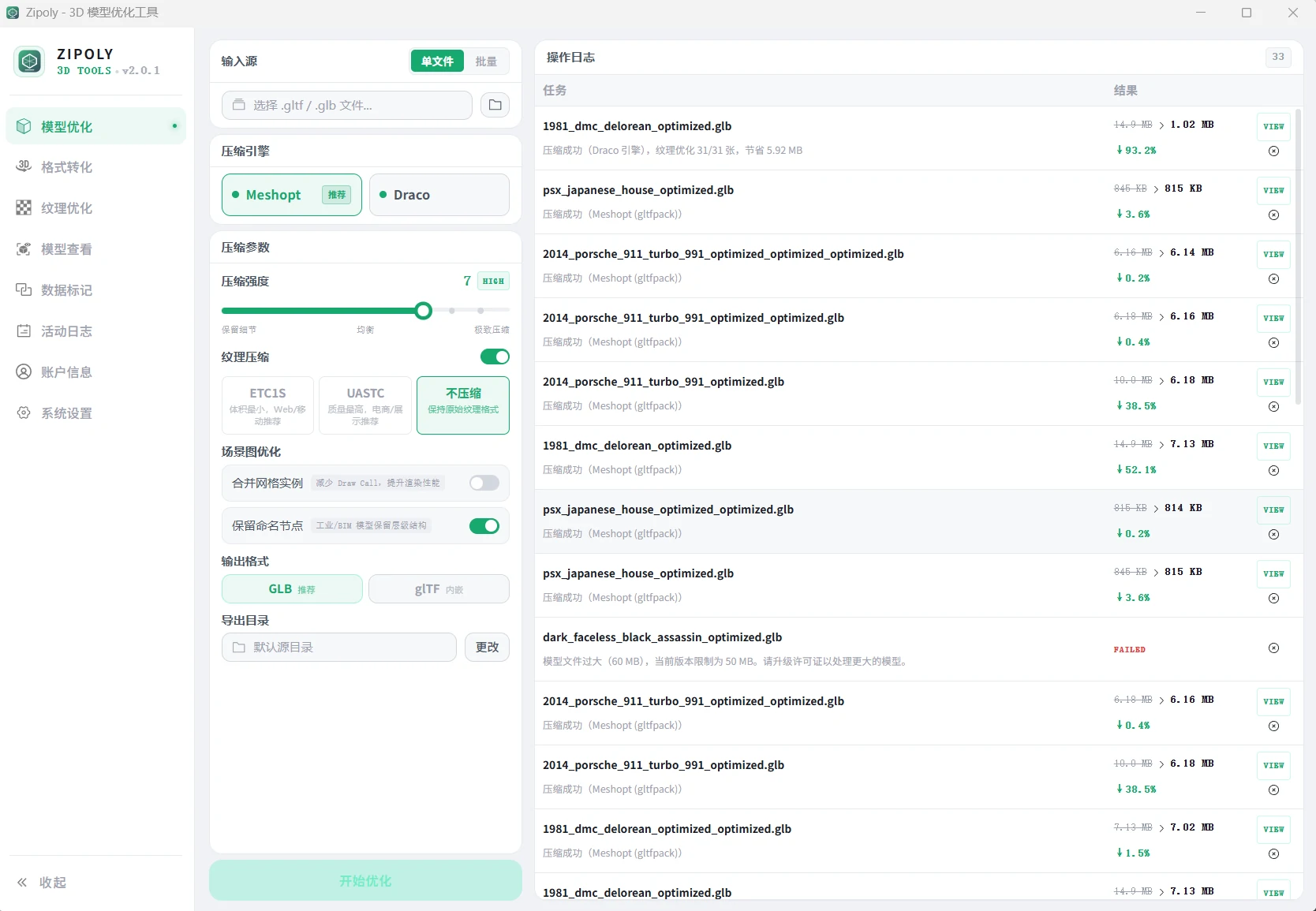
Feature Modules
| Module | Description | Limit |
|---|---|---|
| Model Optimization | Draco / Meshopt geometry compression — the core feature | Free: ≤20MB |
| Format Conversion | Convert between GLB / glTF / OBJ / FBX / STL / DAE / PLY | Free: ≤20MB |
| Texture Optimization | JPEG / WebP / KTX2 image compression | Free: ≤5MB |
| Model Viewer | 3D preview with sectioning, animation, lighting & environment | Free forever |
| Data Tagging | Edit userData key-value pairs on model nodes | Free: ≤20MB |
| Activity Log | History with parameter reuse and report export | Free forever |
| Account | License tier info and License Key activation | Free forever |
| System Settings | Defaults, engine diagnostics and update checks | Free forever |
The free tier is available forever — only per-file size is limited, one file at a time. See Install & Download for free tier details, or Licensing & Pricing for plans.
Find the Right Module
| You want to… | Go to |
|---|---|
| Shrink a GLB/glTF, speed up web loading | Model Optimization |
| Convert FBX / OBJ / STL to GLB | Format Conversion |
| Compress standalone texture images (PNG/JPG) | Texture Optimization |
| Preview a model, inspect its structure, record showcases | Model Viewer |
| Bind IDs/business data to model nodes | Data Tagging |
| Review history, reuse parameters, export reports | Activity Log |
| Activate a license / check license status | Account |
| Change defaults, run diagnostics, check updates | System Settings |
Typical Workflow
A common end-to-end chain that ties several modules together:
- Format Conversion: convert an FBX from your modeling software to GLB (textures auto-embedded)
- Model Compression: compress the GLB with Draco/Meshopt — 70–90% smaller
- 3D Viewer: drag in both versions, compare from the same angle, verify quality
- Operation History: export a CSV/HTML report for records, or reuse the parameters
- Integrate: load the result in Three.js / Babylon.js / model-viewer using the loader code on the optimize page
Quick Start
- Install & Download — download and install
- Model Compression — compress your first model
- 3D Viewer — compare before/after results
- Data Tagging — bind business data to model nodes
- Licensing & Pricing — upgrade when you need larger files and bigger batches
Version & Updates
- Current version v2.1.3 — adds one-click in-app license purchase with automatic key delivery and key recovery by Device ID
- Full history in the Changelog
- Check for updates: one click at the bottom of the Settings page (fetched from Gitee Releases)
FAQ
Which modules can the free tier use?
All eight. Model Viewer, Activity Log, Account and System Settings are free forever with no file limits; Model Optimization, Format Conversion and Data Tagging are limited to 20MB per file (5MB textures), Texture Optimization to 5MB.
Is the interface available in other languages?
Yes — this documentation site offers a Chinese / English toggle in the top-right corner; you are reading the English version.
Can I try it without installing?
Yes. Use Zipoly Web — no installation needed for Draco compression, basic texture optimization, format conversion and model preview (20MB per file).