Format Conversion
Format conversion interchanges 7 3D file formats — FBX, OBJ, STL, DAE (Collada), PLY, glTF and GLB. The most common scenario is converting FBX/OBJ/STL exported from modeling software into the Web3D standard format GLB. Conversion changes the file format only, without geometry compression; to shrink the file, run Compression Optimization afterwards.
Conversion vs Compression
| Format conversion | Model compression | |
|---|---|---|
| What it does | Changes the format (e.g. FBX → GLB) | Reduces geometry & texture size |
| File size | Mostly unchanged | Reduced by 70–90% |
| Purpose | Make the model loadable on the web | Make the model load faster |
| Order | First | Second |
Which Target Format?
- Web / mini-app viewing → GLB: single file, textures embedded; loads directly in Three.js / Babylon.js / model-viewer
- Further editing in DCC software → glTF: textures and
.binstay separate for easy material edits - 3D printing round-trip → STL: geometry only, natively supported by slicers
- Universal interchange → OBJ: understood by virtually every 3D package, but static geometry only
Supported Formats
| Format | Import | Export | Notes |
|---|---|---|---|
| GLB | ✅ | ✅ | The go-to Web3D format, single file |
| glTF | ✅ | ✅ | Textures kept separate, easy to edit |
| OBJ | ✅ | ✅ | Widest compatibility |
| FBX | ✅ | — | Common in modeling software |
| STL | ✅ | ✅ | 3D printing standard |
| DAE | ✅ | — | Collada format |
| PLY | ✅ | ✅ | Point clouds, supports vertex colors |
Format Cheat Sheet
glTF / GLB is the open 3D asset standard by the Khronos Group and the de facto delivery format for Web3D:
| Format | What it is |
|---|---|
| GLB | The binary single-file flavor of glTF — geometry, textures and animation embedded; the standard web delivery format |
| glTF | The JSON-based 3D asset standard defined by Khronos, with textures/buffers as separate files |
| OBJ | A veteran universal text format understood nearly everywhere; static geometry only |
| FBX | Autodesk's ecosystem format — the bridge between Blender/C4D/Maya/3ds Max |
| STL | Triangle-mesh format, the de facto 3D printing standard; no colors or materials |
| DAE | Collada (XML), an early open interchange format |
| PLY | Point-cloud/mesh format common in scan data; supports vertex colors |
How to Convert
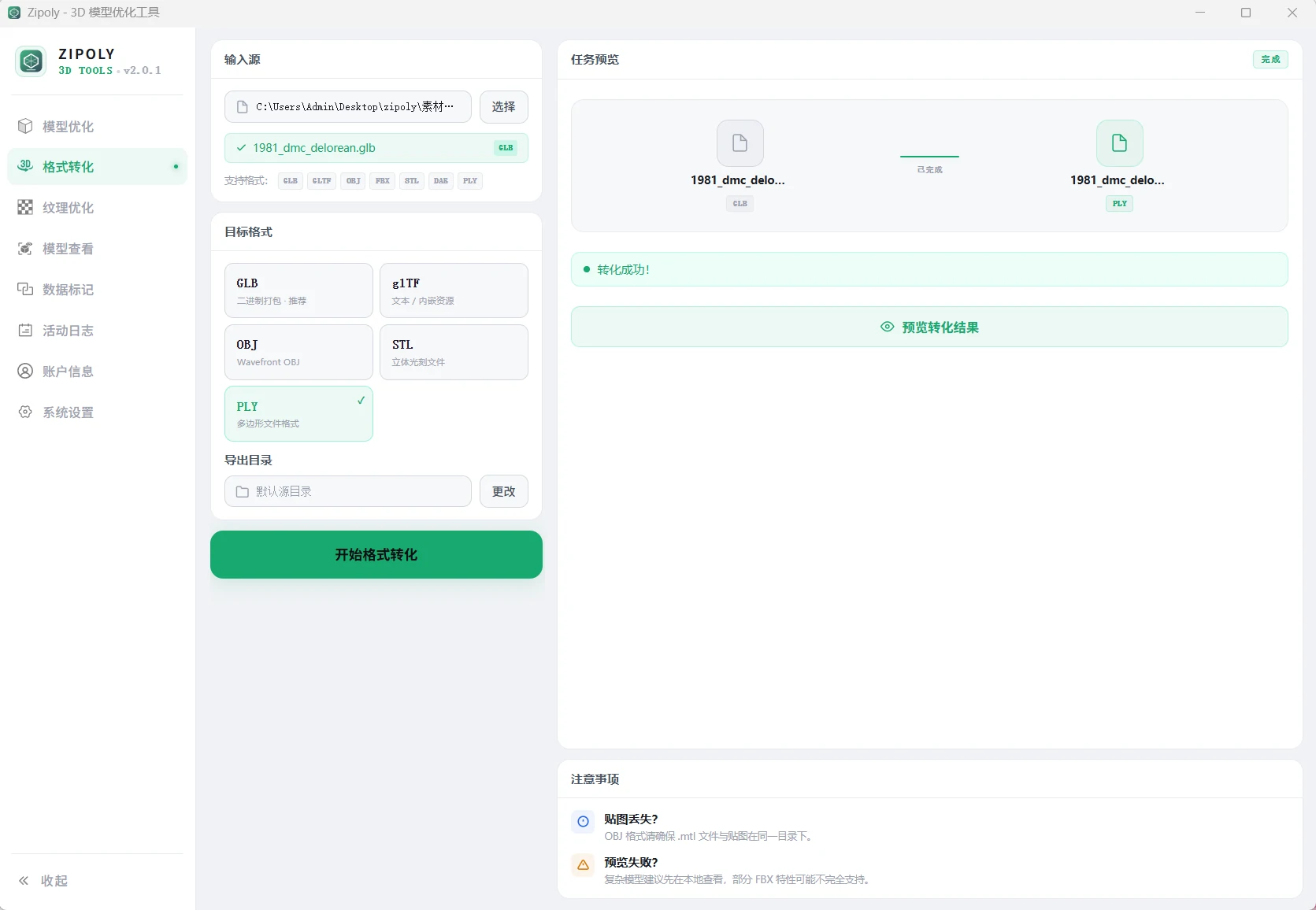
- Open the "Format Conversion" page in Zipoly's left navigation
- Click "Choose File" or drag your file in (FBX, OBJ, STL, DAE, PLY, glTF and GLB all work)
- Pick the target format — for the web, choose GLB (single file, textures embedded)
- Click "Start Conversion" and wait for it to finish
- Grab the converted file from the output folder; continue to Compression Optimization if you need it smaller
When converting glTF to GLB, external textures and the .bin file are automatically packed into the GLB, producing a fully self-contained single file.
Capacity & Limits
| Item | Free | Licensed |
|---|---|---|
| Per-file size for conversion | ≤ 20 MB | ≤ 500 MB |
| Output formats | all 7 | all 7 |
Conversion itself has no feature gating — the free and licensed tiers differ only in the per-file size cap. See Licensing & Pricing.
FAQ
Materials are wrong after FBX conversion?
Complex FBX material graphs may be lost during conversion. We recommend opening the model in Blender and exporting GLB directly.
Do I still need the external textures after glTF → GLB?
No. The GLB embeds all textures and is a fully self-contained single file.
Is there an order requirement between conversion and compression?
Convert first (FBX → GLB), then compress (GLB → compressed GLB) — the order cannot be reversed.
Can STL be converted to GLB for web viewing?
Yes. After converting STL to GLB it loads in Three.js, Babylon.js, model-viewer and other web runtimes. STL contains geometry only — apply materials in modeling software first if you need colors.
Does conversion shrink the model?
No. Conversion changes the format only, without geometry compression; glTF → GLB may change size slightly due to texture embedding. To reduce size, run Model Compression afterwards — that typically cuts another 70–90%.